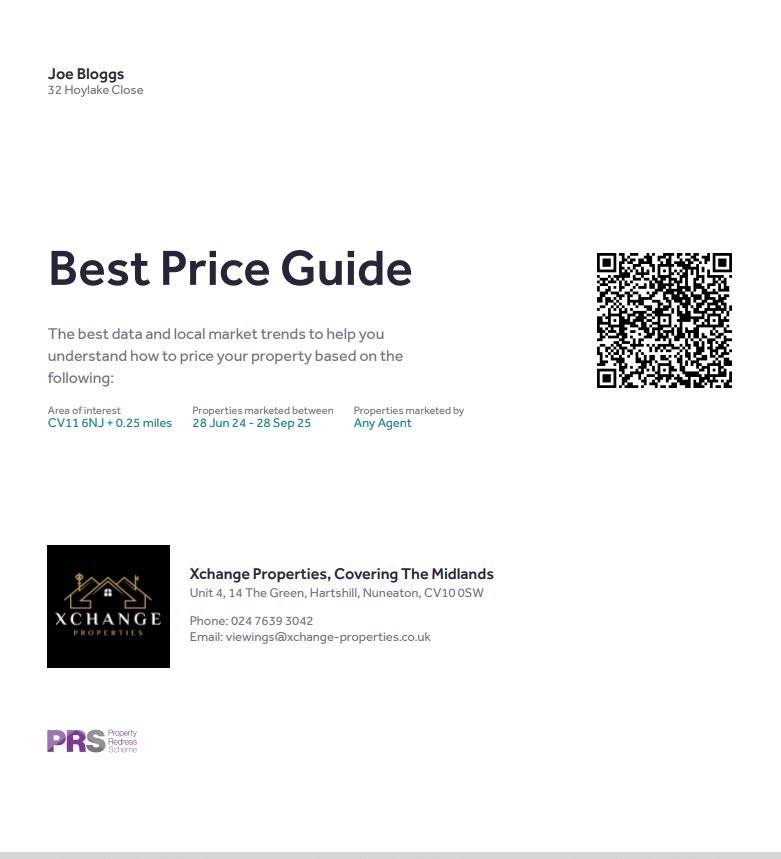
Generating a report comes in handy when you are out on a valuation. You can print off your report and show the owner exactly what has sold in the local area so you are able to give a clear and decisive valuation on the day of your valuation
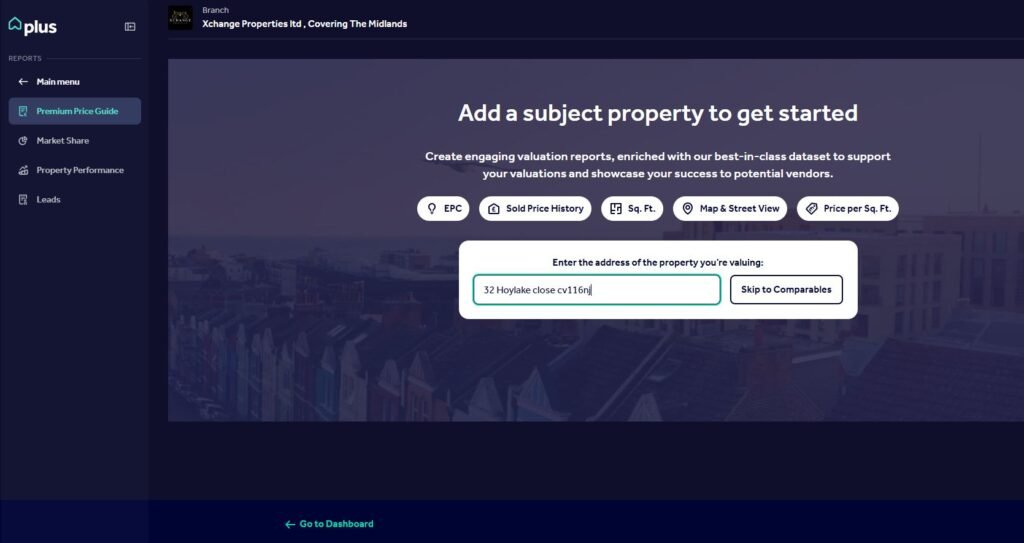
Here is a screenshot of what your premium price guide page will look like. To get to this page, click on the “Reports” button to the left hand side, and select “Premium Price Guide”
Simply enter the address in the text box and then click “Skip To Comparables”. This will take you the property you will be going out to (if sold since Rightmove was created) which may include photos, floorplan and property description from when it was last listed.
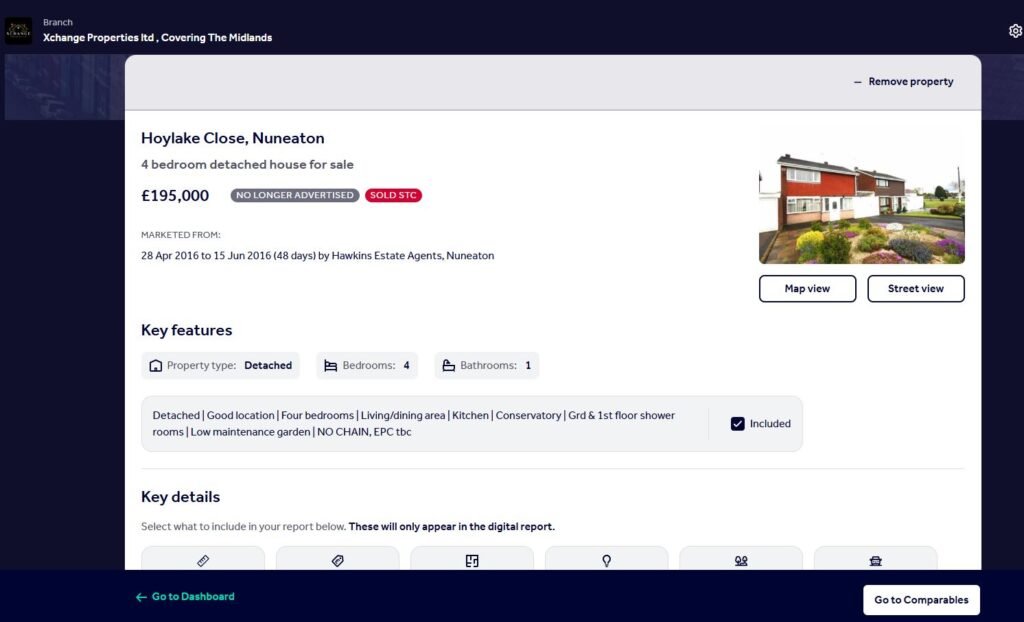
Once you have typed in your address, the following page will appear if it has been listed on Rightmove before.
So you now have the details of the property you will be going out to as it has previously sold on Rightmove.
Your initial conversation when booking the valuation is vital. Without questions such as “What work have you done to the property since you bought it”, you won’t know whether this image will give you a clear indication of the property as it is now.
Now that you have found the property, click on “Go to comparables” button which is in the bottom right hand corner.
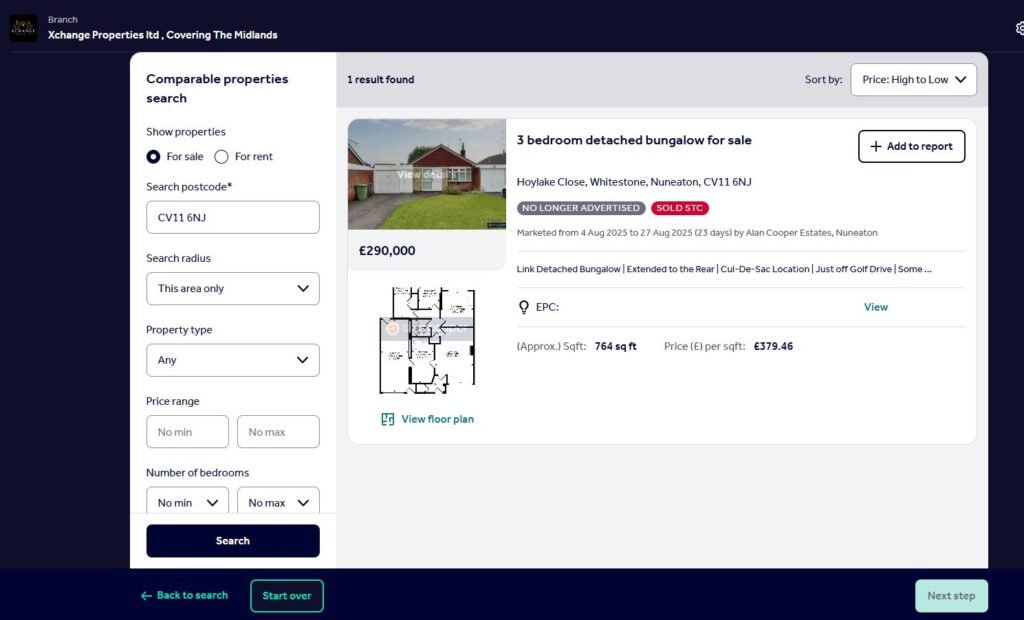
This page now shows you what has recently sold to the postcode you have entered. You can see that this 3 bedroom bungalow is not a very good comparable for a 4 bedroom detached property, so you will now use the filters on the left hand side to help find properties more in line of what you will be going out to.
At the very bottom of the filters is “Market Period”, which automatically only shows the last 3 months of listings in this postcode. I would suggest extending this filter before anything else. Remember, you want to try and find the closest properties first! Try searching in the last 12 months!
If you still can’t find a decent comparable, then alter the other filters.
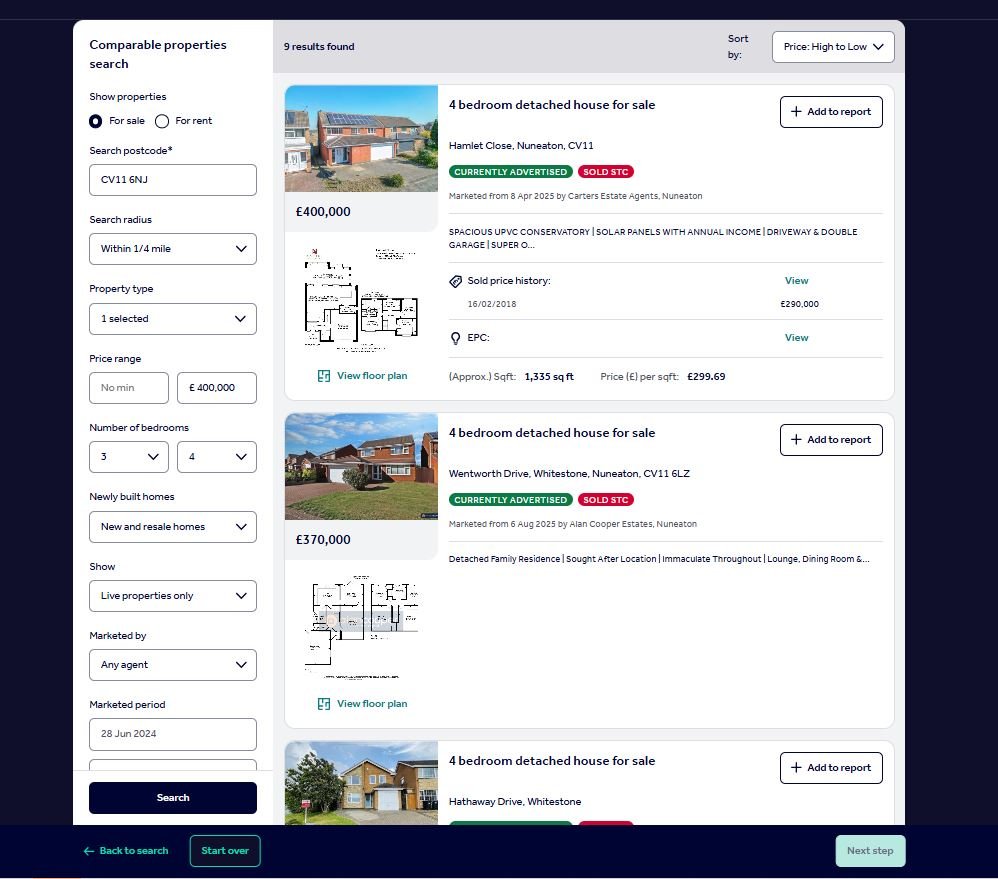
For example, the property we are going out to is a 4 bedroom detached, so change the search filters bedrooms (3 & 4), property type (detached) and search radius to 1/4 mile.
So you can see that I have filtered my search by changing the radius to 1/4 mile. 3-4 bedrooms and up to £400,000, which has created a number of options to add to my report.
To add these to the report, simply click on “Add to report” button to the right hand side of the image of the property. This will then highlight the property and add them to your report.
Once you have all of the properties you think are similer, click on “Next Step”.
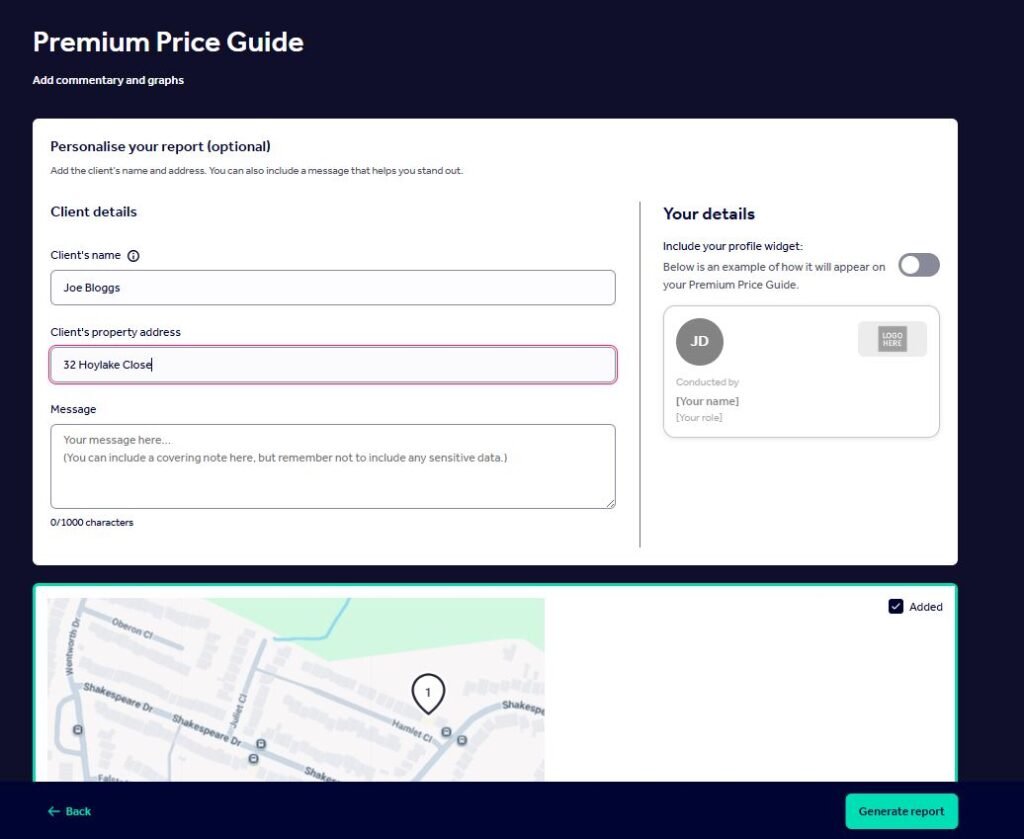
The next step is just filling out the clients name and address. You can also leave a brief message if you like. “Great meeting you!”
Then click on “Generate Report”.
So you now have your report which you can print off and hand to your client on the day of your valuation!