Spectre is the software we use for email marketing campaigns, sending marketing material and generating marketing reports for properties for valuations.
Email marketing campaigns are set up to generate additional touchpoints to help you win instructions, help generate feedback after viewings and to get your 5 star reviews after a sale is completed.
Marketing material is set up automatically to generate more valuations once you have instructed a property and once you have sold a property. When a property goes to market, Spectre will send out 50 postcards to similar properties in the local area helping attract additional properties to book a valuation with you, similarly, when you sell a property, Xchange Properties will send another postcard to similar properties showing that you have sold the property. All of this is done for the benefit of building up your pipeline and is included in your monthly fee.
Now, email marketing and marketing material you don’t need to worry about. This has all been set up for you and runs in the background. You will primarily use Spectre to generate reports before you attend a valuation. It creates a multitude of helpful comparables and local data to help show you’ve done all of your homework!
Let’s show you how to generate a marketing report.
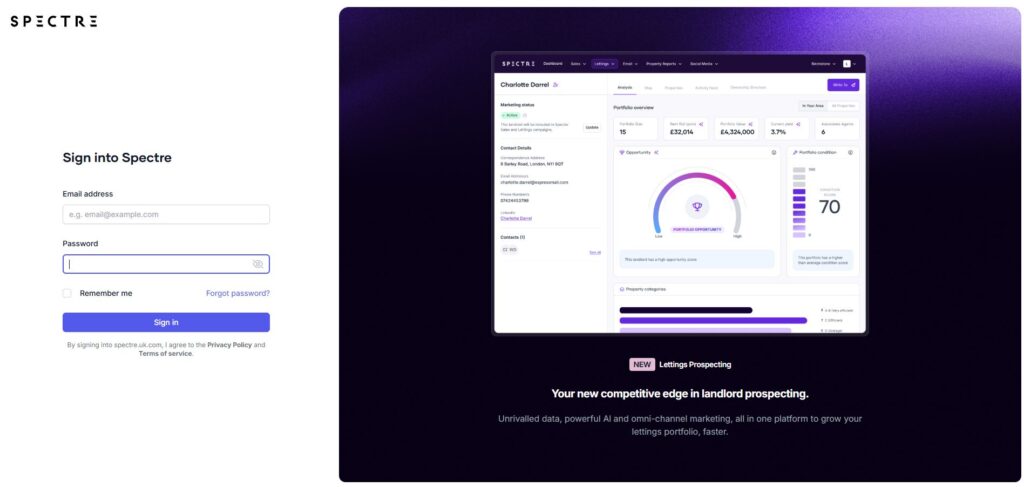
The first step is to login. You should have received your login details during your onboarding. If you are unsure of your login details, contact sales@xchange-properties.co.uk
You should now be logged in.
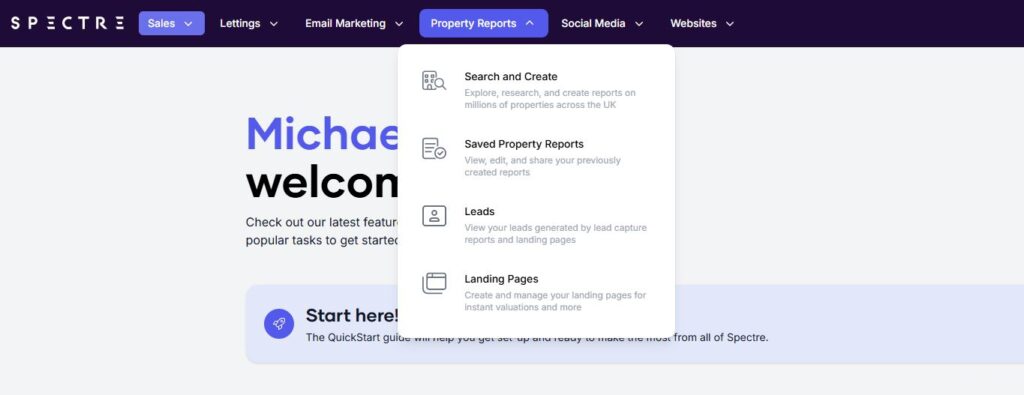
At the top of the search bar, you will see “Property Report”, click it and then go into “Search & Create”.
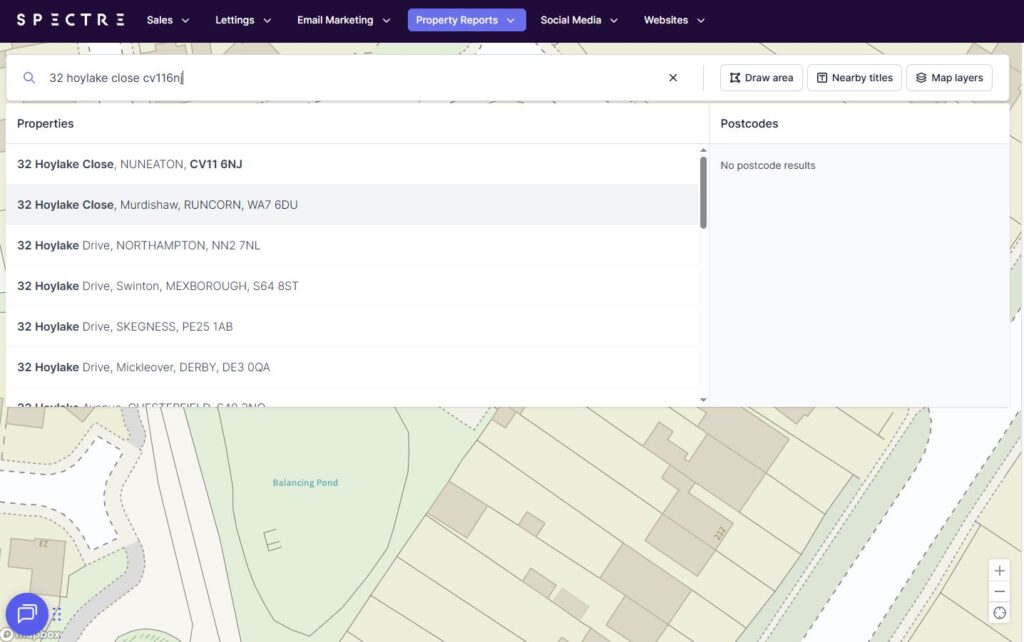
A mapping system will appear. Enter the address where you will be going for your valuation and then click on the address when it appears.
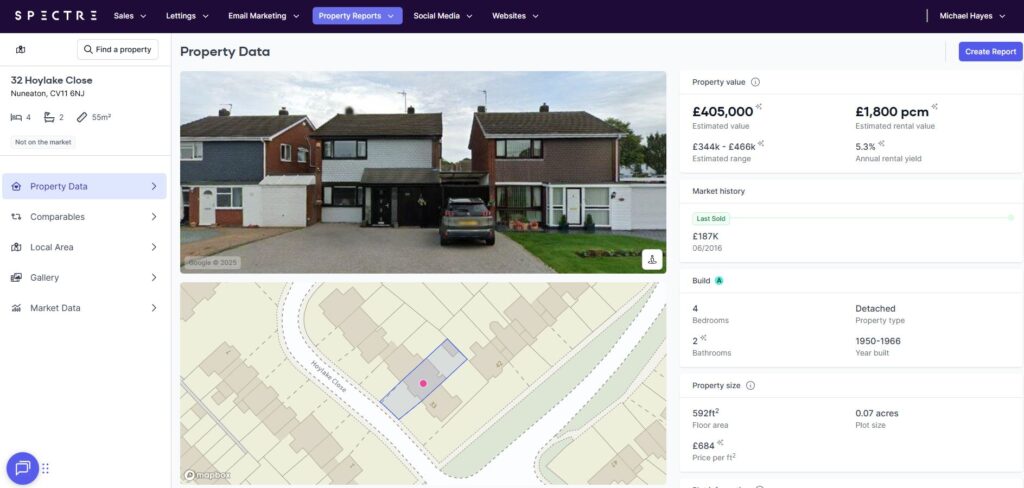
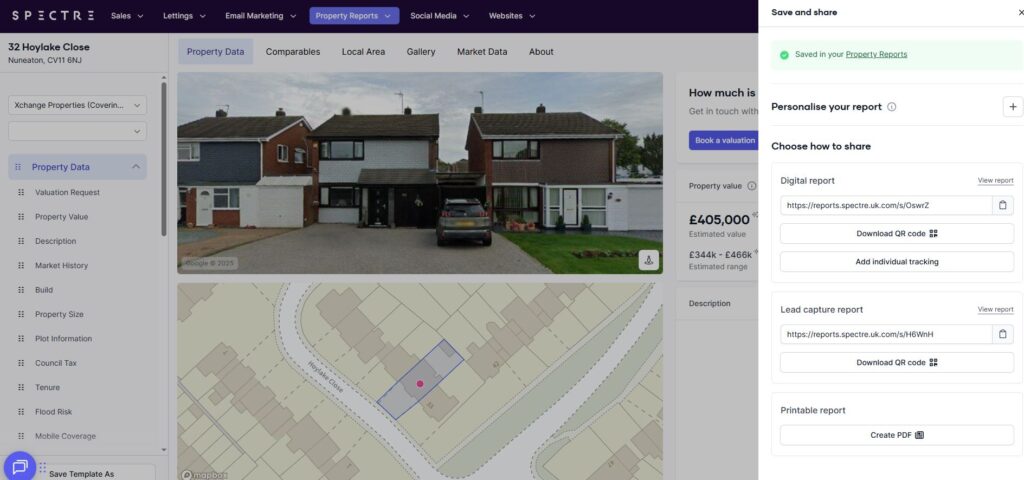
From this page you can see the property data, such as when the property was last purchased, Estimated value and rental value, plot size, square footage etc.
On the left, you can see comparable information, local area, photos from when it was last purchased, and market data.
When you have finished looking over the comparables and doing some research, click on “Create Report” on the top right hand corner.
You have now created your report. It will give you the option to create a PDF and print it so you can take it to your valuation. Alternatively, you can send the link to the homeowner just before you arrive at the valuation so they can take a look at the comparables before you arrive.